Title here
Summary here
The Windows installer normally includes the required .NET runtime. Keep the exact startup error and check the installer log and antivirus protection history before reinstalling. A missing runtime and a quarantined application file need different remedies; do not disable antivirus protection just because the application fails to start.
If the Windows error specifically reports a missing .NET or ASP.NET runtime, install the required runtime from Microsoft:
This message alone does not identify the cause. Update to the current XPME release and save the startup error, Windows version, and any antivirus quarantine or protection-history entry. Use these details to check for a missing runtime or blocked application file.
Do not disable Hardware-enforced Stack Protection (UserShadowStack) or other Windows exploit protections as a general workaround. If the failure persists, send the details to support for version-specific diagnosis. Keep existing protections enabled while the cause is unknown.
Regarding maps:
Regarding features:
New features and optimizations are typically introduced in the Professional version first.
Please check if the base package and X-Plane are on NTFS drives. Other file systems like exFAT are not supported for mounting.
If you have installed other versions of WinFSP, please uninstall them and keep only the latest version.
Reinstall Fuse-T first if mounting fails. If the base-package downloader reports that aria2 cannot load libsqlite3.dylib, libssh2, or gettext, check that Apple Silicon Homebrew is installed under /opt/homebrew, then run:
brew reinstall sqlite libssh2 gettext aria2An Intel/Rosetta Homebrew installation under /usr/local may not provide the ARM libraries required by the application. See issue #599 for the confirmed example.
max_threads is an unknown FUSE option (Linux) This option requires libfuse 3.12 or later. In XPlane Map Enhancement 4.7.10 or later, open Advanced Settings and remove options unsupported by your installed libfuse version. Alternatively, upgrade to a supported Linux distribution instead of manually replacing system libraries. See issue #557.
Please upgrade to the latest base package >=3.2.0
This issue has been resolved in the new version. Please update to the latest software and base package.
Work through these steps in order:
If you have an older version of the base package, you can safely download the new version. The software will automatically overwrite the old files with the new ones. However, if you have made any modifications to the base package, please back up your files before proceeding.
Check these items before changing download-thread settings:
If you only noticed .zip.aria2 files or ZIP files disappearing after installation, first read Confirm installation is complete. These observations do not necessarily mean installation failed. If the standard download is slow, use manual installation and offline downloads.
Please check if there is a process named X-Plane running. If so, terminate it in the Task Manager. Sometimes, certain plugins may prevent X-Plane from exiting properly, causing the interface to close while the process remains active.
First identify whether X-Plane, XPME, or both closed. A crash alone does not establish whether the cause is the simulator, scenery, enhancement application, other plugins, or system resources.
Log.txt from the X-Plane installation folder for the affected session, along with error screenshots. If a crash report was generated, keep the corresponding files in Output/Crash Reports. Do not send only the last log line; the last scenery or plugin named is not necessarily the cause.Custom Scenery/scenery_packs.ini, then temporarily disable suspected plugins or scenery packs one at a time and restore them after testing. Follow the reversible scenery test; do not delete purchased scenery or plugin folders.If the crash persists, provide X-Plane’s complete Log.txt, operating system and application versions, base-package version and mode, primary and fallback maps, airport and aircraft, reproduction steps, and the result of each test when asking for help.
Blur can come from imagery still loading, limited source detail, texture settings, or VRAM pressure—not only the network.
Loading time depends on the flight area, cache, quality settings, computer performance, storage, and network. There is no universal loading time or required image count.
Read Loaded, From Cache, and Failed alongside the simulator’s loading progress; see Checking initial loading status. If Failed keeps increasing, run Diagnostics to check the primary and fallback providers. If Loaded or From Cache increases, failures are not steadily rising, and the simulator is progressing, you can continue to observe.
If loading stalls or is noticeably slower than previous runs of the same scenario, work through these checks:
Resources\plugins.Record your current settings and change one at a time in the same scenario. Restore each setting if it does not help. Current defaults are a troubleshooting starting point, not necessarily the best values for every connection.
| Setting | Troubleshooting guidance |
|---|---|
| Network timeout | Defaults to 30 seconds. Increase slightly for frequent timeouts; a long timeout makes failed requests take longer to finish. |
| Maximum connections | Defaults to a limit of 200 connections per server, not 200 permanently running threads. Try reducing it if failures rise under concurrent requests; too low a limit can also slow loading. |
| Retry failed request | Enabled by default. If repeated failures prolong loading, temporarily disable it for comparison. Disabling retries does not fix connectivity; restore it if there is no improvement. |
If the disk is continuously busy or low on space, check the base-package and cache storage too; network settings alone may not help. Before relocating directories, exit X-Plane and stop the XPME service, then select the correct paths in the application settings.
Your home broadband rate is not the same as actual map-server download speed. Routing, proxies, and server responses affect downloads; imagery processing and scenery reads also depend on CPU, memory, and storage performance.
Use Diagnostics to compare access to the primary and fallback providers, then check loading counters and system resource use to decide whether to investigate the network or the computer. A successful broadband speed test does not rule out loading problems.
| Type | Purpose |
|---|---|
| XPME regional base packages | Provide the terrain mesh and work with XPME to load satellite imagery. |
XPME_Overlays, SimHeaven X-WORLD |
Provide buildings, roads, trees, and other overlay objects, not the satellite-imagery base mesh. SimHeaven can be used with XPME terrain. |
| Ortho4XP, HD Mesh, and other base meshes | Compete with XPME regional packages for terrain priority in overlapping areas. Two base meshes cannot be combined for the same tile. |
Load order is controlled by X-Plane/Custom Scenery/scenery_packs.ini; entries nearer the top have higher priority. Before editing, exit X-Plane, stop the XPME service, and back up the file.
With XPME regional packages, the main entries should appear from top to bottom as follows:
XPME_Overlays, only when installed and enabled, above the other XPME regional packages.With automatic scenery reordering enabled, XPME reorders base packages each time it starts. Disable that option first if you need to manage a special order manually. Do not delete the entire scenery_packs.ini to reset the order.
When X-Plane Original Base Package Enhancement is enabled, the application switches modes instead of enabling XPME regional packages and XPME_Overlays alongside it. Do not add those entries manually to match the regional-package order above. See the feature guide for the difference between modes.
Install the SimHeaven regions you need and the libraries required by your version. X-WORLD’s vegetation library must be installed and linked as instructed. If Log.txt reports missing simheaven/forests/... resources, check the vegetation library using the SimHeaven FAQ.
If you choose SimHeaven as your overlay provider, you can disable the buildings/trees overlay package (XPME_Overlays) in the XPME downloader without deleting its files. First check that SimHeaven covers the regions you fly in; areas without another overlay may lack buildings or roads after disabling XPME’s overlay. Layer names and requirements can differ between X-WORLD and X-WORLD Pro versions, so follow the manual supplied with your version.
Check the base-package mode and the package’s installed/enabled status in the downloader:
scenery_packs.ini.For more on load order, see the official X-Plane guide.
For a reversible test:
Custom Scenery/scenery_packs.ini.SCENERY_PACK prefix to SCENERY_PACK_DISABLED, keeping the path unchanged. Do not disable XPME or default global scenery indiscriminately.If you cannot identify the entry, ask for help before editing. X-Plane documents this mechanism in Prioritization of Scenery Packs.
Examples of scenery that can take priority in overlapping areas:
A few network errors are normal. However, if you encounter many errors in a short period, it indicates network access or configuration issues. Please refer to the previous settings for troubleshooting.
Black squares with text appear when map tiles fail to load, typically due to network connectivity issues. If only a few appear occasionally, this is not a concern. However, if numerous black squares persist, consider switching to a different map provider or troubleshooting your network connection.
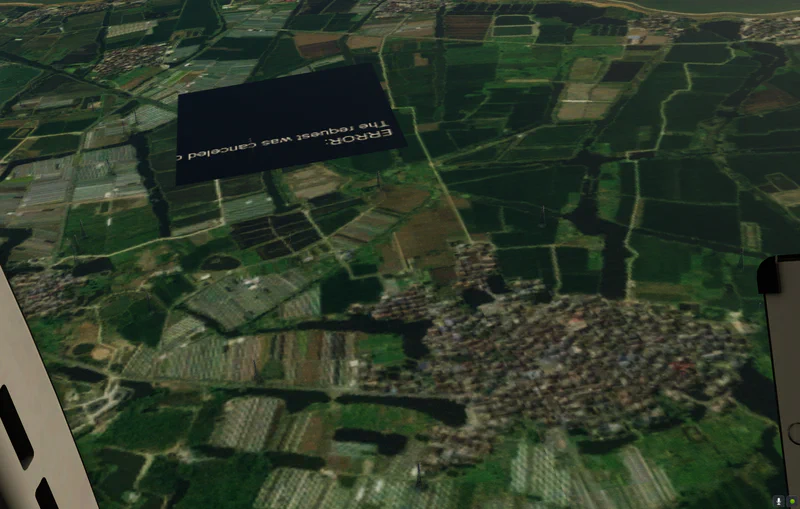

Possible causes:
High CPU usage during map loading is expected behavior. The process involves handling and processing a large number of high-resolution images, which is computationally intensive. While ongoing optimizations are being implemented, this remains a resource-intensive operation.
Note that the preload feature may cause particularly high CPU usage when high-resolution ground textures are enabled. If you experience performance degradation in the simulator, consider temporarily disabling this feature.
X-Plane is designed to load scenery assets from local storage, which offers consistent access times. However, with enhanced maps, these assets are retrieved over the network. When network conditions are suboptimal, request times may exceed 10 seconds, resulting in temporary stuttering.
Additionally, the processing and compression of numerous images contribute to CPU load, which can affect performance. To mitigate these issues, it’s strongly recommended to enable the “Preload” feature, which caches map data in advance.
The base package is built with Ortho4XP. To create the tile that contains an affected airport and repair terrain, follow these steps:
zOrtho4XP_+latitude+longitude tile. Use Z16 to match the XPME base package..dsf files from Earth nav data, preserving their latitude/longitude grouping folders, into the Earth nav data directory of the XPME_* base package that owns the tile.textures files into the _textures directory of the same XPME_* base package.XPME_* package owns the tile, do not overwrite files; submit a report with the airport name, coordinates, and screenshot instead.If you fixed the terrain and you’d like to share the tile with others, please create a pull request on the GitHub repository. We welcome contributions from the community.
X-Plane 12 is recommended. X-Plane 11 is not officially supported; although some users have run it with older base packages, compatibility and loading performance are not guaranteed.
If you continue using X-Plane 11, use only base-package version 3.1.0; later base-package versions are incompatible. Here, 3.1.0 is the base-package version, not the XPME application version. Check the base-package version and directory guidance when downloading and installing; do not use a base-package version intended for X-Plane 12.
X-Plane 12 doesn’t natively optimize for enhanced map processing, requiring the application to handle substantial image processing and DDS file operations. This naturally results in elevated CPU utilization. Continuous optimization efforts are ongoing, but the resource-intensive nature of these operations remains a challenge.
First distinguish the exact message:
See the license guide for full instructions. MSFS and XPlane licenses are not interchangeable.
For any other questions or issues not addressed in this manual, please submit an issue at: https://github.com/derekhe/xplane-map-enhancement-release/issues