Title here
Summary here
Windows 10 is not supported. Map Enhancement requires Windows 11. Please upgrade your system before installing or using it.
Ensure Microsoft Flight Simulator (MSFS) 2024 is NOT running before you begin. If the simulator is running when you click “Start Service” in the MOD, the service may fail to load.
No special regional configuration is required.
Open the MSFS2024 Map Enhancement application and configure the settings correctly. There are two versions of the app — one for MSFS 2020 and one for MSFS 2024 — so make sure you are using the correct version. You should find two icons on your desktop after installation.
Configure the Game rolling cache path after checking the in-game setting. Use Use default location only when the game also uses its default path. Notes:
Check Network Options. Incorrect settings can prevent maps from loading or make terrain blurry.
http://127.0.0.1:port or socks5://127.0.0.1:port, replacing port with the actual port number. Click Test proxy, then check that both your primary and fallback maps load; a successful proxy test does not guarantee access to every map provider.If you need Professional maps, open the License page, enter the email and username used on the purchase page, then click Link Device. If linking succeeds, your license details will be displayed.
Return to the home page and select ArcGIS as the Primary Map, or Google Maps if you prefer. Use a provider your network can reach, configuring a proxy only if needed. Select Bing latest version as the Fallback Map; it is used when the primary source cannot provide a tile. Check that both providers load.
With the simulator still closed, click Start Service on the Map Enhancement home page. Once the button changes to Stop Service, start MSFS 2024. If service startup fails, save and resolve the full error shown before continuing.
Pan the map or load a flight, then observe Loaded and Failed. Counters may stay unchanged when no map tiles are requested; you do not need to wait for a fixed count before starting the game. If Failed keeps increasing, run Network Diagnostic and check access to both your primary and fallback providers.
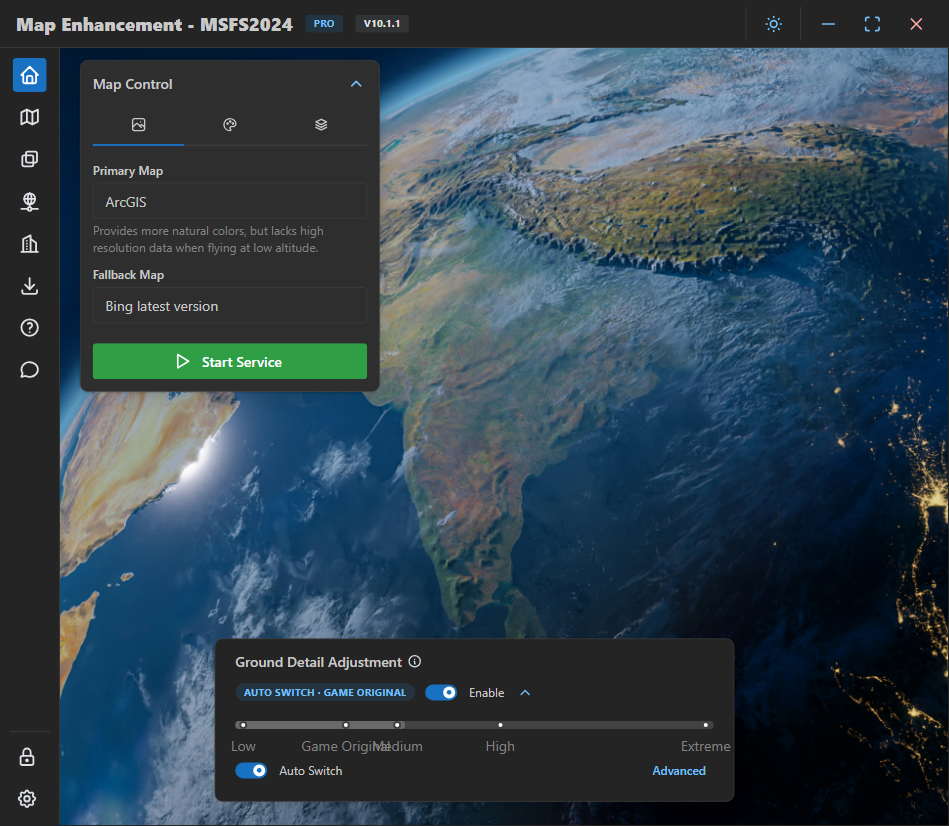
You should now be ready to play. If you encounter any problems, please refer to the FAQ for troubleshooting steps.