Title here
Summary here
The installer normally includes the required .NET runtime. Keep the exact startup error and check the installer log and antivirus protection history before reinstalling. A missing runtime and a quarantined application file need different remedies; do not disable antivirus protection just because the application fails to start.
If the error specifically reports a missing .NET or ASP.NET runtime, install the required runtime from Microsoft:
Issues with maps not loading include stuck blue loading bar, slow loading, and maps not displaying. Please refer to the troubleshooting steps below. Note: For issues related to third-party software and proxy configuration, please contact the software vendor.
If you cannot enter the game after uninstalling the map enhancement, it’s usually because the hosts file was not restored.
Exit the simulator first, then stop the Map Enhancement service and exit the application if it is still installed. If the problem persists, back up C:\Windows\System32\drivers\etc\hosts before editing it with an administrator text editor. Remove only entries matching the lines below that remain from Map Enhancement. Keep all unrelated entries, and do not delete the hosts file itself. If you cannot identify an entry’s purpose, ask for help before changing it.
127.0.0.1 kh.ssl.ak.tiles.virtualearth.net
127.0.0.1 t3.ssl.ak.tiles.virtualearth.net
127.0.0.1 t2.ssl.ak.tiles.virtualearth.net
127.0.0.1 t1.ssl.ak.tiles.virtualearth.net
127.0.0.1 t0.ssl.ak.tiles.virtualearth.net
127.0.0.1 khstorelive.azureedge.net
127.0.0.1 cdn-shared-wca-endpoint.azureedge.net
127.0.0.1 sunriseworld.akamaized.net
127.0.0.1 kittyhawkworld.akamaized.netMSFS Map Enhancement does not support Windows 10, including for MSFS 2020. We no longer provide Windows 10 compatibility updates, troubleshooting, or workarounds. Please upgrade to Windows 11 before installing or using the application.
Try them yourself — each map has its own strengths and trade-offs.
Since MSFS 2020 SU16 and MSFS 2024, the simulator no longer allows injecting high-resolution map tiles. As a result, the High LOD feature has been removed.
The newer Ground Detail Adjustment feature uses a different method and is available for both MSFS 2020 and MSFS 2024 in version 10.1.0 or later. It does not restore 512 × 512 tiles. Start with TLOD 200 and Medium, then adjust according to performance. See the Feature Guide.
Map replacement, Ground Detail Adjustment, and Building Enhancement are separate features:
| Feature | Simulator | What changes |
|---|---|---|
| Map replacement and color adjustment | MSFS 2020 / 2024 | Changes the satellite-imagery provider and image colors. Switching maps alone does not replace 3D buildings. |
| Ground Detail Adjustment | MSFS 2020 / 2024 | Changes how the simulator requests ground detail; it does not create detail absent from the source imagery. |
| Building Enhancement | MSFS 2024 only | Uses separately downloaded and enabled building data to update autogenerated building coverage and quality. Switching maps does not automatically enable it. |
These features do not replace trees, road geometry, or photogrammetry with another map provider’s data. Photogrammetry areas still use Microsoft’s 3D scenery, not Google’s 3D buildings. A different roof or road in the satellite imagery does not mean the corresponding 3D object has changed.
Your program may already be running in the system tray (bottom-right corner). Please check there.
Make sure the software is closed (check the system tray icon) or end the process in Task Manager.
Server won’t start and shows “443 or 42098 port is occupied”
Check whether the app’s normal administrator/UAC prompt was approved. Do not disable UAC or grant broad permissions to system folders. On a managed PC, ask the administrator for help.
OSError: [WinError 10013] An attempt was made to access a socket in a way forbidden by its access permissions.
In PowerShell, list the listening processes without stopping anything:
Get-NetTCPConnection -State Listen |
  Where-Object { $_.LocalPort -in 443, 42098 } |
  Select-Object LocalAddress, LocalPort, OwningProcess
Match OwningProcess to the PID in Task Manager’s Details tab. Only close an application normally after identifying it and saving its work. Do not end unknown processes or system services. No matching listener does not rule out a permission or reserved-port problem. See Microsoft’s Get-NetTCPConnection documentation.
If there is no matching listener, check Windows port reservations, especially on a PC with virtual machines. The following are optional troubleshooting steps for a suspected reserved-port conflict; they do not resolve a port already occupied by another application. Run commands in PowerShell as Administrator. On a managed PC, ask the administrator first.
You can try adding an excluded TCP port range:
Risk: This changes the system’s port configuration for 42000–42099, not just Map Enhancement’s settings, and may affect other applications’ use of these ports. The exclusion persists after a reboot by default. Record the existing configuration before changing it; if unsure, ask an administrator. See Microsoft’s netsh interface documentation.
netsh int ipv4 add excludedportrange protocol=tcp startport=42000 numberofports=100Or try restarting WinNAT:
Risk: Restarting WinNAT can temporarily interrupt networking for virtual machines, containers, and other applications that depend on it. Save your work and pause affected tasks first. Make sure
net start winnatsucceeds afterward; if it fails, preserve the error and ask an administrator for help.
net stop winnat
net start winnatExit the simulator, stop the Map Enhancement service, and exit the app before manually editing C:\Windows\System32\drivers\etc\hosts. Save a backup copy first. Check the Map Enhancement entries listed above and change only entries confirmed to belong to the app. Preserve other software’s entries and comments; do not replace the file with an empty or generic copy.
Record the lines you change. If the test does not help, undo only your changes from the backup, keeping any unrelated edits made since then.
Check the protection history for an actual blocked write. If a security product confirms that it blocked the verified Map Enhancement application, consult that product’s instructions for a narrowly scoped permission. Do not turn off antivirus protection or exclude the entire hosts file from scanning. If the available setting disables protection broadly, ask the vendor or administrator for help.
Use a text editor opened with Run as administrator for an authorized manual edit. If access is still denied, inspect the file’s read-only attribute and permissions; do not take ownership or grant Full Control to everyone as a workaround. Ask the administrator if you are unsure why access is restricted.
Tools that rewrite hosts, such as some Steam helpers, can undo changes. If you identify such a conflict, save that tool’s settings and temporarily pause only its hosts-rewriting feature, then restore the setting after the test.
If Start Service still reports that it cannot modify hosts, send the exact error and relevant protection-history entry to support. Do not repeatedly reinstall the app or share your entire hosts file publicly; it may contain private network names.
The app modifies hosts, installs a root certificate for local HTTPS, and requires administrator permissions. Security warnings must be checked individually; a detection should not automatically be treated as a false positive.
If you are concerned:
Send relevant screenshots privately if they contain account details or personal paths. Contact us if you need further help.
If MSFS repeatedly switches to offline mode, check the simulator’s connection status and run Map Enhancement’s Network Diagnostic tool. If you use a proxy or accelerator, check its configuration using the proxy guidance.
In Map Enhancement, try setting Network profile to Normal and retest. Record the original setting and restore it if there is no improvement.
If Failed keeps increasing, or tiles are missing or blurry, start troubleshooting. The accumulated count alone does not identify the cause. If failures have stopped increasing and maps load correctly, you can continue to monitor.
Network Setting to Normal. Change one setting at a time and restore it if there is no improvement.If images stop loading during flight it usually points to network stability issues:
Google may have blocked requests from your IP address, causing Google map tiles to fail. Try switching to a different Google tile server or use a VPN.
Map imagery can vary due to weather, lighting, and seasonal differences — this sometimes causes color shifts or visible seams. Switching to another tile provider often reduces these inconsistencies.
Color adjustment does not redraw tiles that MSFS has already cached. After moving a slider, fly or move the world map to a new area to load new tiles. In MSFS 2024, you can also use the satellite-image cleanup action on the color settings page. Photogrammetry keeps Microsoft’s own colors and cannot be adjusted by Map Enhancement.
Some Google imagery includes visible provider attribution, such as “Google © 20xx”, as shown below. This alone does not indicate a loading failure. The old High LOD toggle is no longer available; see what changed with High LOD.
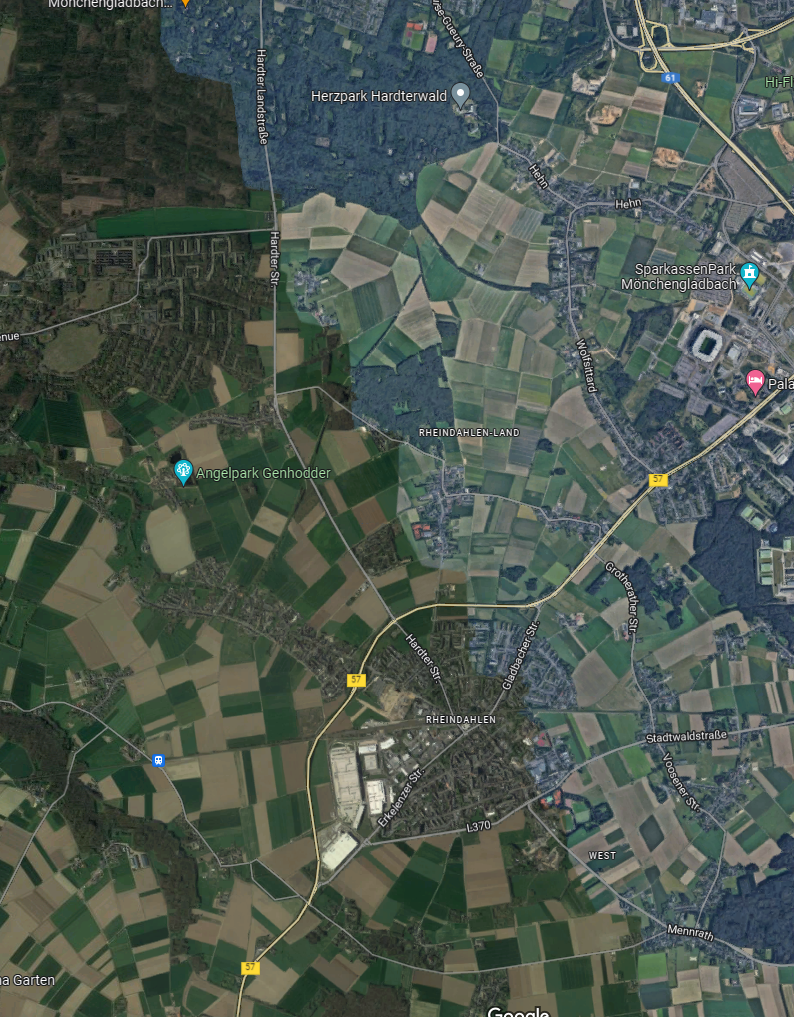
In some cities you may notice certain areas look brighter or bluer than surrounding regions. For example: https://www.google.com/maps/@51.1659465,6.3662235,8042m/data=!3m1!1e3
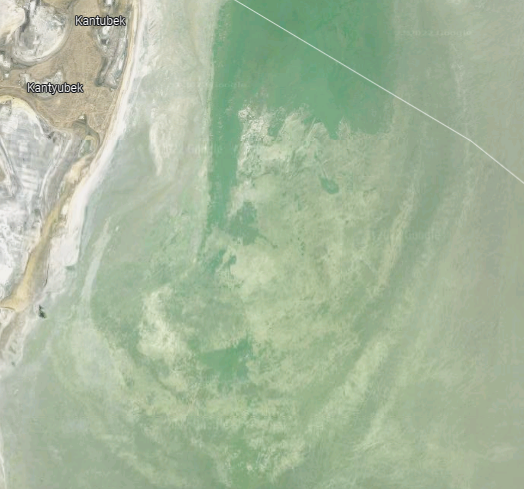
Some areas can have visible color boundaries in the source imagery. Compare the same location in the provider’s satellite view to help distinguish source-image differences from an in-game display issue. You can also compare another map provider at that location.
Map Enhancement uses Google’s map tiles; it does not import Google’s 3D photogrammetry into MSFS.
Different tile layers may have different color tones. MSFS often loads higher altitude/low-detail layers first (what you see when high above the terrain), then refines lower, more detailed layers.
During a flight the lower-detail tiles will be gradually replaced by higher-detail tiles, so you may see temporary differences while the game streams additional data — this is more noticeable at high altitudes.
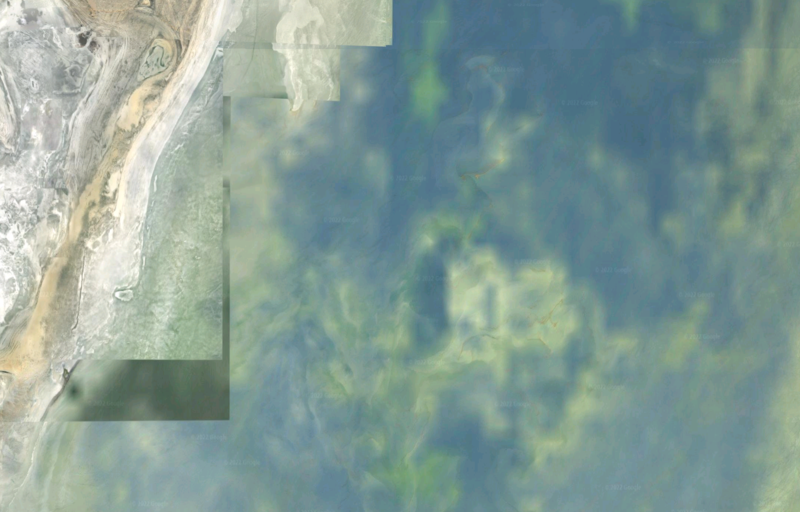
To reduce the effect, try setting Terrain Details to 200 or higher (400 is ideal). Note that this won’t eliminate differences in every area.
Imagery resolution can vary by provider, region, and zoom level. A blurry area does not necessarily mean the application is inactive; the source imagery itself may have limited detail.
The maps are not live imagery, and there is no single capture year for every region. One provider may combine images collected on different dates; a map service’s update date is not the same as the date a photograph was taken.
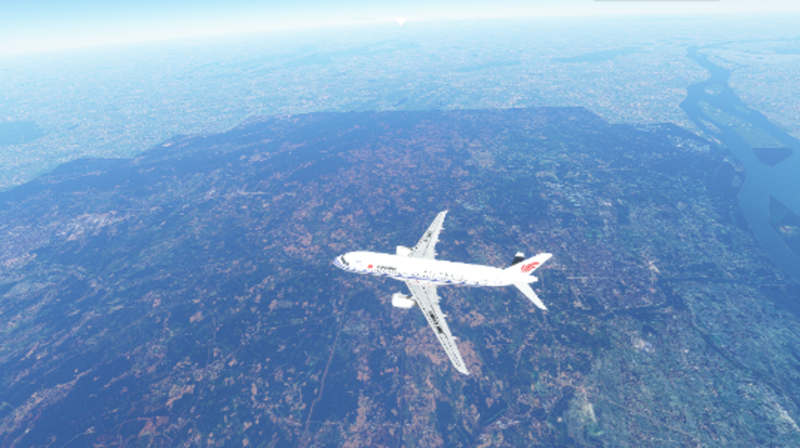
Try increasing the Terrain LOD to around 200 for improved results.
When using Mapbox, some regions can return different tile layers (z-index) at low and high altitudes. This can make low-altitude and high-altitude scenery look different and create a colored circle that appears to follow the aircraft. Avoid Mapbox in these areas, or use the Hybrid Map Editor to configure automatic switching for the region.
An increasing Loaded count shows that the application is processing imagery; it does not, by itself, prove that your current simulator view shows the selected map.
If you still cannot confirm the result, provide the airport or coordinates, simulator and application versions, primary and fallback provider names, diagnostic results, and comparison screenshots from the same location.
First check whether the simulator is online. In MSFS 2020, also confirm that Bing online maps are enabled in the game’s DATA settings.
Run Map Enhancement’s Network Diagnostic tool to check access to your selected providers. If you use a proxy or accelerator, check its configuration using the proxy guidance.
If the problem started after stopping or uninstalling Map Enhancement, follow Hosts file issues to check for leftover entries.
Some network/accelerator tools (for example UU accelerator) are known to cause problems — try disabling them first.
If the error mentions hosts, follow Hosts file issues. Do not delete the entire file or unrelated entries.
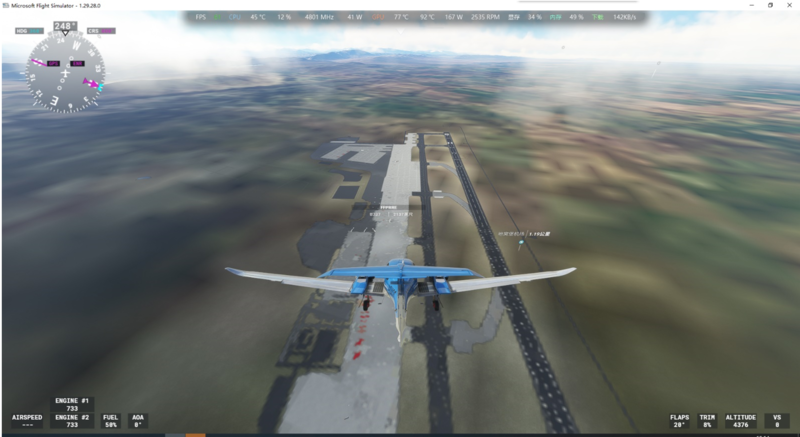
If terrain remains blurry while the application is loading imagery, run Network Diagnostic and check whether the Failed count keeps increasing.
In Map Enhancement, open the network options and set Network profile to Normal, then retest. Restore the previous setting if it does not help.
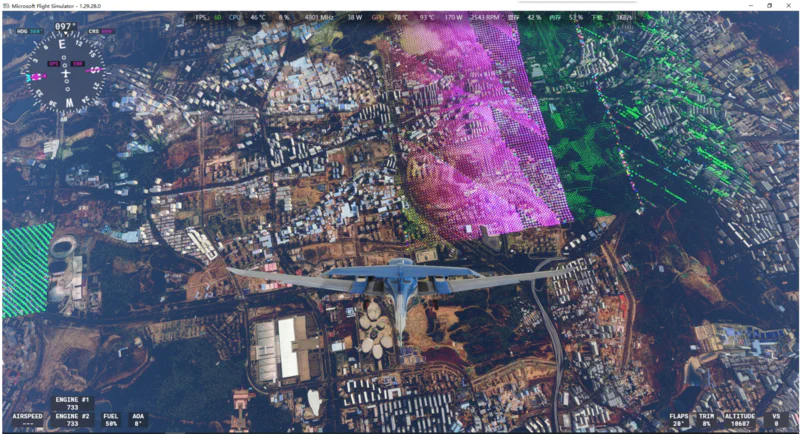
If you see noisy or distorted imagery on the map:
First identify whether MSFS, Map Enhancement, or both closed. A crash can involve the simulator, enhancement features, other add-ons, drivers, or system resources; the timing and logs help narrow down the cause.
If the crash persists, include the simulator (MSFS 2020 or 2024), game and enhancement application versions, error screenshots and the crash time, Windows error records (if available), primary and fallback maps, whether Building Enhancement is enabled, reproduction steps, and tests already performed when asking for help.
The installer creates separate applications for MSFS 2020 and MSFS 2024. Open the application that matches the simulator you want to run, then select the correct Microsoft Store or Steam version in its settings.
The shell:AppsFolder path shown for a Microsoft Store installation is expected on Windows. If Windows opens an install page instead of the game, first confirm that you opened the correct 2020/2024 application and selected the correct store type.
An overlay (in-place) installation is usually enough. If it fails, uninstall the previous version and reinstall.
See the license guide for purchase, activation, renewal, and device rules. MSFS and XPlane licenses are not interchangeable.
Follow the exact error message:
An expired license needs renewal. Hardware changes, replacing a disk, or reinstalling the OS can change the device ID. Try linking with your existing name and email; if the device is blocked or the license is already in use, contact the author. See license validity and device changes.
Find your license confirmation email and check the spam folder. If you still cannot find it, follow the support instructions and send your order details privately. Do not post receipts or personal information in public groups or GitHub issues.
Check the name, email, and product in your license confirmation, then click Link Device on the application’s License page. See the activation steps.
One license is for one device. Linking a new computer invalidates the previous activation and blocks the old device ID from linking that license again. See the license guide for moving computers, unlinking, and using multiple devices; unlinking is not a routine troubleshooting step.
Use the official license website. Follow the purchase instructions for a new license; activation takes place inside the application.
Renew the same product using your existing name and email, then link in the application and check the expiry date. See the renewal instructions, including what to do if the date has not changed. Do not unlink or pay again just to refresh the date.
If you have further questions or need help, open an issue here: https://github.com/derekhe/msfs2020-map-enhancement/issues