Title here
Summary here
MSFS and XPlane Map Enhancement licenses are separate products and are not interchangeable. Choose MSFS2020/2024 Map Enhancement for Microsoft Flight Simulator, or XPlane Map Enhancement for X-Plane. Check the product and duration before paying.
If you bought the wrong product or paid twice, contact the author with your order details before making another purchase. Do not assume that a license for the other simulator will activate automatically.
Activation happens inside the Map Enhancement application, not on the payment website or in the simulator.
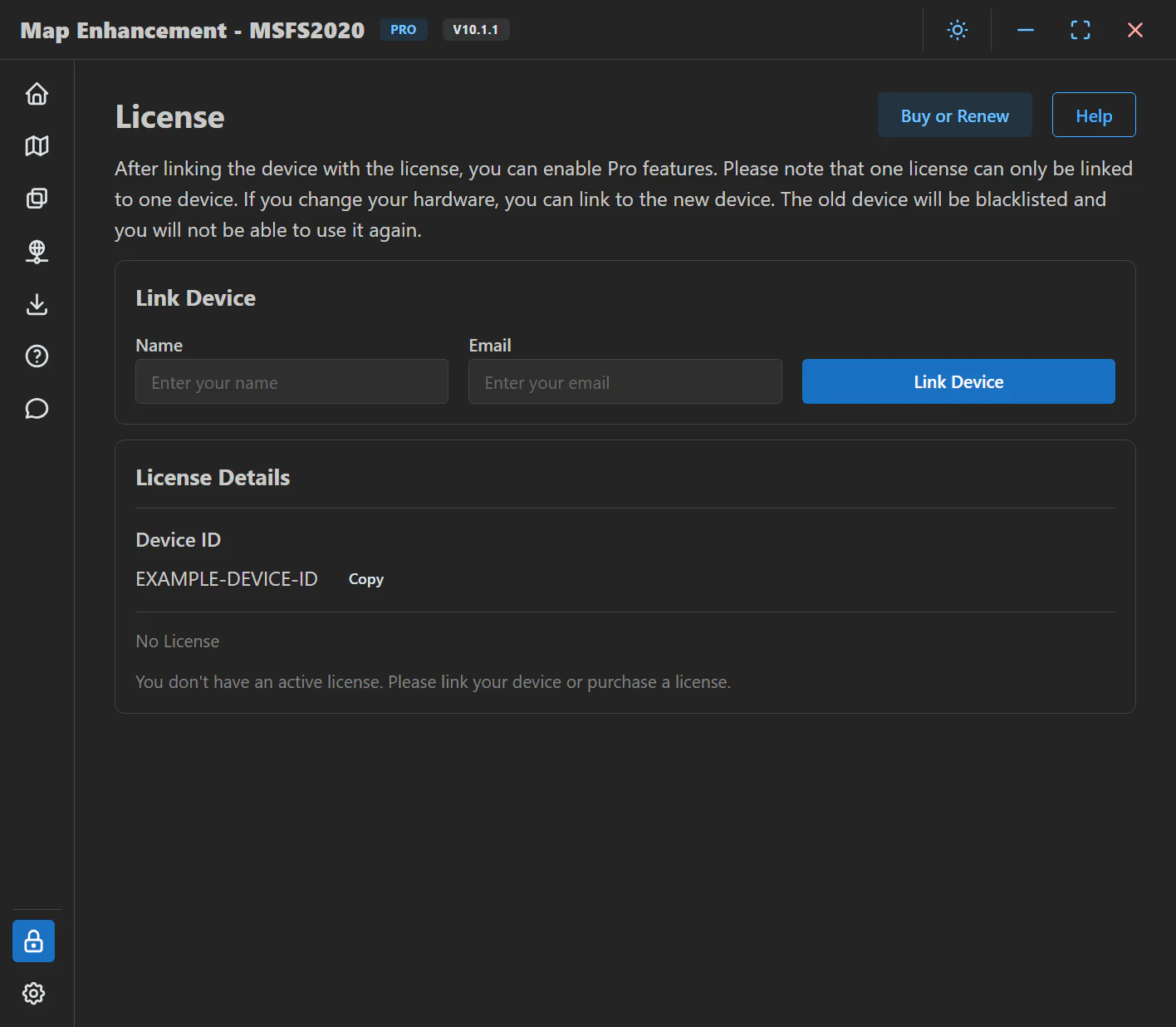
Renew through the official license website, choosing the same product and using the same name and email as your existing license. Then return to the application’s License page, link the device with those details, and check the expiry date.
If the date has not changed or the application still says Expired, check the product and identity in the new confirmation email against the application. If they match and the problem remains, contact the author with both the renewal receipt and a screenshot. Do not unlink the device or buy another license just to refresh the date.
| What you see | What to check next |
|---|---|
| No confirmation email | Check the inbox and spam folder for the address used for the purchase. If nothing arrives within 2 hours, contact the author with the receipt. |
| License not found, or a new purchase still shows Expired | Confirm the product, name, and email against the license confirmation. If you paid directly through a payment platform and never received license details, contact the author. |
| Network connection failed, a timeout, or HTTP 500 | Keep the exact error message. Check the application’s network/proxy settings and try another network if possible. An HTTP code alone does not establish whether the problem is local or server-side; contact the author if it persists. |
| Version is too old | Download the current release for your product before retrying. |
| License already in use, Device blocked, License blocked, or Device has been unlinked and can’t link again | Check the device rules below. If this follows a legitimate hardware change or OS reinstall, contact the author for help. Repeated purchases or linking attempts are not a recovery procedure. |
An expired license needs renewal. Hardware changes, replacing a disk, or reinstalling the operating system can change the device identity and require linking again. Incorrect purchase details can also prevent activation; use the confirmation email to check them.
On the new computer, open the correct application’s License page and link using your existing license name and email. One license is for one device, not for switching back and forth between computers. Linking another computer invalidates the previous activation; the old device ID is blocked from linking that license again.
If the new computer cannot link, or you need to return to the old computer, contact the author before buying again.
Yes, but unlinking is not a temporary sign-out or a way to refresh a license. The old device is blocked from linking that license again. Do not unlink as a routine fix for activation or renewal errors; contact the author if you need help restoring access.
Each computer needs a separate license. Use a different username for each computer when purchasing, so a new device license is distinguishable from a renewal. If you already purchased several licenses under the same account and cannot activate all your computers, contact the author with the receipts and number of devices; do not purchase them again.
After a hardware change or OS reinstall, try linking again with your existing name and email. Installing another operating system on the same physical computer can also result in a different device identity. If the application says the license is already in use or the device is blocked, contact the author and explain the change.
. Include:
Send order and license details privately. Do not post payment receipts or personal information in public GitHub issues or user groups. Never send passwords or full card details.
If you are not satisfied with the pro license, please tell me why and I will give you a refund. The refund period is 7 days after I sent out the license.
Dear user, thank you for choosing MSFS/XP Map Enhancement Pro Version. Here, we provide the following disclaimer to clarify the software’s features and usage conditions:
Map Image Enhancement: MSFS/XP Map Enhancement Pro Version enhances the original map’s image, including color and level of detail, through specific features and algorithms. These enhancements are the core features of the paid version.
Source of Maps: All map data is sourced from publicly available internet data or services; we did not create or draw the maps ourselves. Map copyrights belong to the original map companies. We strive to comply with the usage agreements of each map and use this data within legal boundaries.
Paid Features: The payment for MSFS/XP Map Enhancement Pro Version is for its specific features and algorithms, not the maps themselves. Our goal is to provide an improved flying experience beyond just map data.
Usage Agreement: Please adhere to the usage agreements of each map when using them. If you have any questions or need detailed information about map data usage regulations, refer to the official websites of the relevant map companies or contact their customer service departments.
Please note that MSFS/XP Map Enhancement Pro Version is intended for entertainment purposes only. Thank you for your support and trust. If you have any suggestions or feedback regarding MSFS/XP Map Enhancement Pro Version, feel free to contact us. Happy flying! 🛩️✨