Title here
Summary here
Important system check: If you have disabled the page file or set a size limitation for it, ensure you enable it and set it to be automatically managed by the operating system. Failure to do so may result in memory issues and cause crashes in the mod or X-Plane. If you’re unfamiliar with page file settings, you likely haven’t adjusted them and can skip this step.
Before launching the game, open the X-Plane Map Enhancement application on your desktop. This guide uses ArcGIS as the Primary Map and Google Maps (shown as Google Map in the application) as the Fallback Map.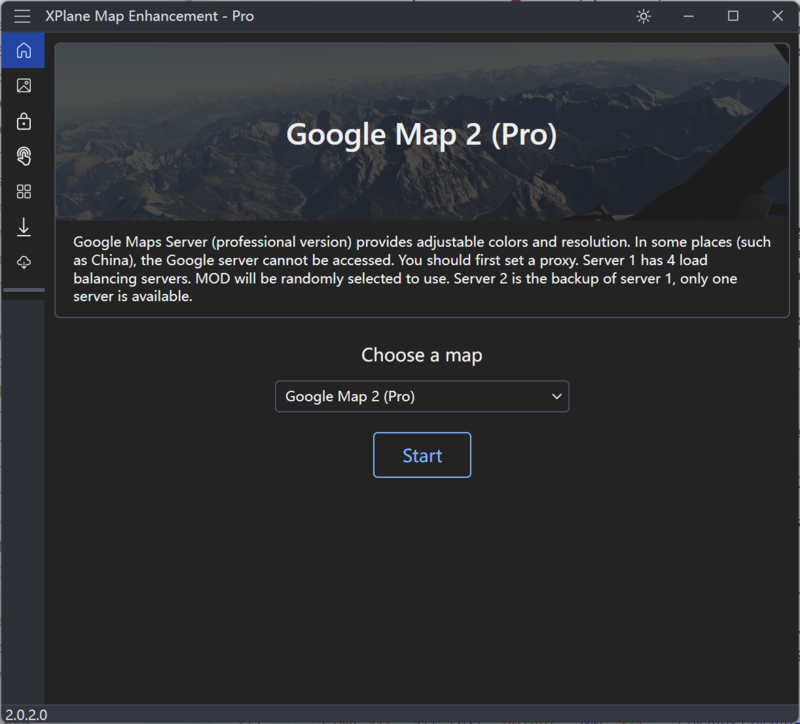
Click the gear icon in the left sidebar to open Settings. Configure these three required items first; the orange boxes and numbers in the screenshot match the list below.
X-Plane.exe (Windows), X-Plane.app (macOS), or X-Plane-x86_64 (Linux).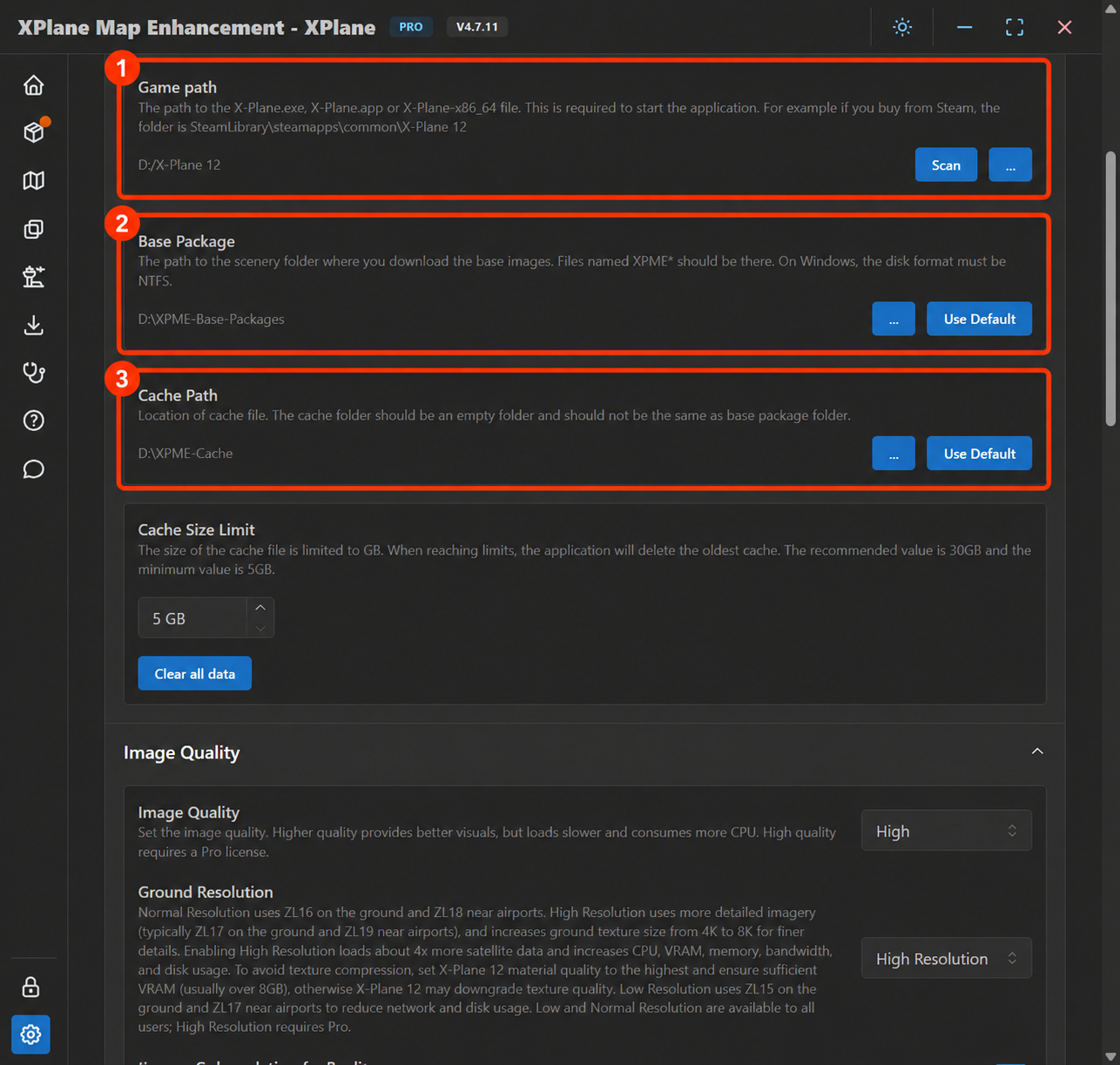
If your network can access ArcGIS and Google Maps directly, leave Proxy Settings empty. If access is restricted or requests fail, configure a proxy that can reach both providers. Use the protocol and port documented by your proxy application, such as http://127.0.0.1:port or socks5://127.0.0.1:port; do not copy another application’s port. Test the proxy, then run Diagnostics from the sidebar to check map access.
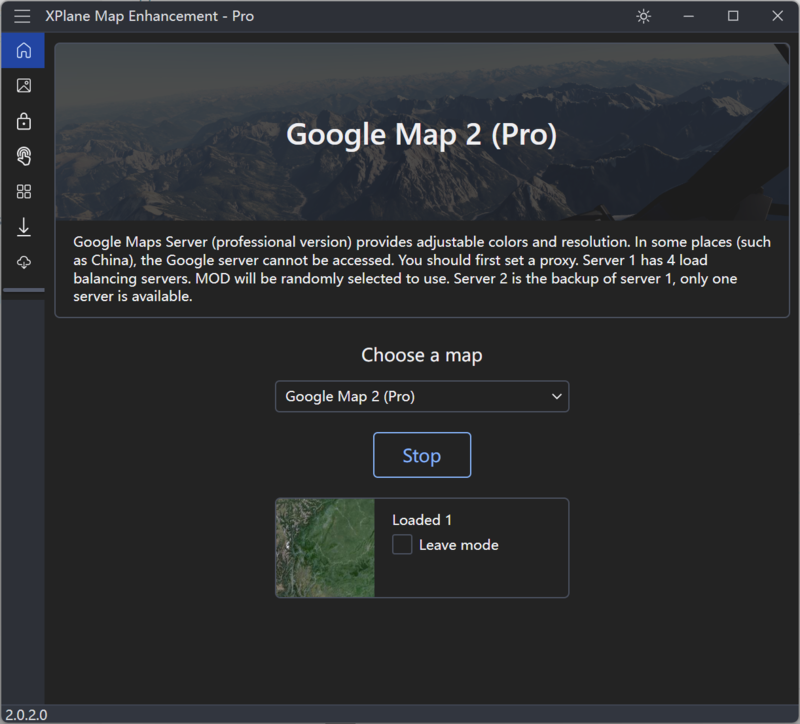
Confirm that the base package for your flight area is installed and enabled. On the main screen, select ArcGIS as the Primary Map and Google Map as the Fallback Map to match the screenshots, or choose other providers available to your network and license. If you enable seasonal effects, choose the Startup Season for your departure airport in Auto mode, or use Season override to keep a fixed season; see season settings. Then click Start Service. Once the service is running, the button changes to Stop Service:
Launch X-Plane, select an airport, and begin your flight.
As X-Plane requests imagery, Loaded and From Cache in Map Control reflect processing activity. The counters can remain at zero before you load a flight. There is no required image count or fixed loading time; it depends on the region, cache, quality settings, computer, and network.
If Failed keeps increasing or black blocks with text appear in-game, run Diagnostics and check access to your primary and fallback providers. You do not need to wait for a particular failure count.
If loading stops progressing, use the status table below. If security software may be affecting file access, follow Setup antivirus software to check blocking records and scanning settings.
To exit properly, close X-Plane first, then click Stop Service in the enhancement application.
Primary Map supplies the preferred imagery for your flight. Fallback Map supplies tiles when the primary source cannot provide a usable image or does not cover the area. Both sources need to be accessible from your network. China HD maps cover China only; outside their coverage, the fallback map is used.
The screenshots use ArcGIS as the primary source and Google Maps as the fallback. You can also select Google Map as the primary source and ArcGIS as the fallback to compare their imagery around your departure airport. Coverage, image dates, detail, colors, and loading speeds vary by location and network; choose the combination that works best for the area where you fly.
A proxy is needed only when your network cannot reach the selected providers, not simply because you selected a particular map name. Opening a map website in a browser does not prove that XPME can retrieve its tiles; use the in-app diagnostics. If your router or TUN connection already provides working access, an additional in-app proxy is unnecessary.
After configuring a proxy, check the diagnostic results for your primary and fallback providers. A successful proxy test does not guarantee access to every map source. For a failure, record the provider, HTTP status or full error, then check the address, port, and routing rules using your proxy application’s instructions. See How Accelerators and Proxy Servers Work for background; its hosts-interception diagrams describe MSFS, not XPME’s scenery mounts.
Night textures also require access to ArcGIS. Check that source even if your primary map loads successfully.
| Current state | What to do |
|---|---|
| Service is running, no flight has been loaded, and counters are zero | Select an airport and load a flight in X-Plane, then check the counters. |
| Loaded or From Cache increases without a steadily rising failure count | Watch the simulator’s loading progress; there is no fixed image-count target to wait for. |
| A flight is loaded, but counters remain zero or default scenery is still shown | Check the X-Plane path, region package installation/enabled state, and scenery order; see scenery-loading troubleshooting. |
| Failed keeps increasing or black blocks with text appear | Run diagnostics and check the selected providers and proxy. Home broadband speed alone does not establish connectivity to the map server. |
| Loading stalls without an obvious network error | Check X-Plane’s Log.txt for disk, memory, or scenery-loading issues; see Slow Map Loading. |
When requesting help, include the airport or coordinates, application version, primary and fallback providers, diagnostic results, a screenshot of the counters, and X-Plane’s Log.txt.
You can switch maps during flight, but scenery already loaded is not redrawn immediately. Wait for X-Plane to request new tiles or move to another area. To compare the same airport, exit the flight and reload the scenery. If old imagery remains, consider clearing the application’s image cache and reloading the scenery again. Cache cleanup does not immediately refresh the current view, and is not required every time you switch maps.