Title here
Summary here
This guide covers the current base-package, seasonal, and platform features in XPlane Map Enhancement 4.7. Update to the latest version before following it.
Version 4 base packages were rebuilt with newer terrain, OpenStreetMap, and elevation data. They improve terrain precision and extend coverage for high-latitude areas, including the Arctic, Antarctic, and small ocean islands.
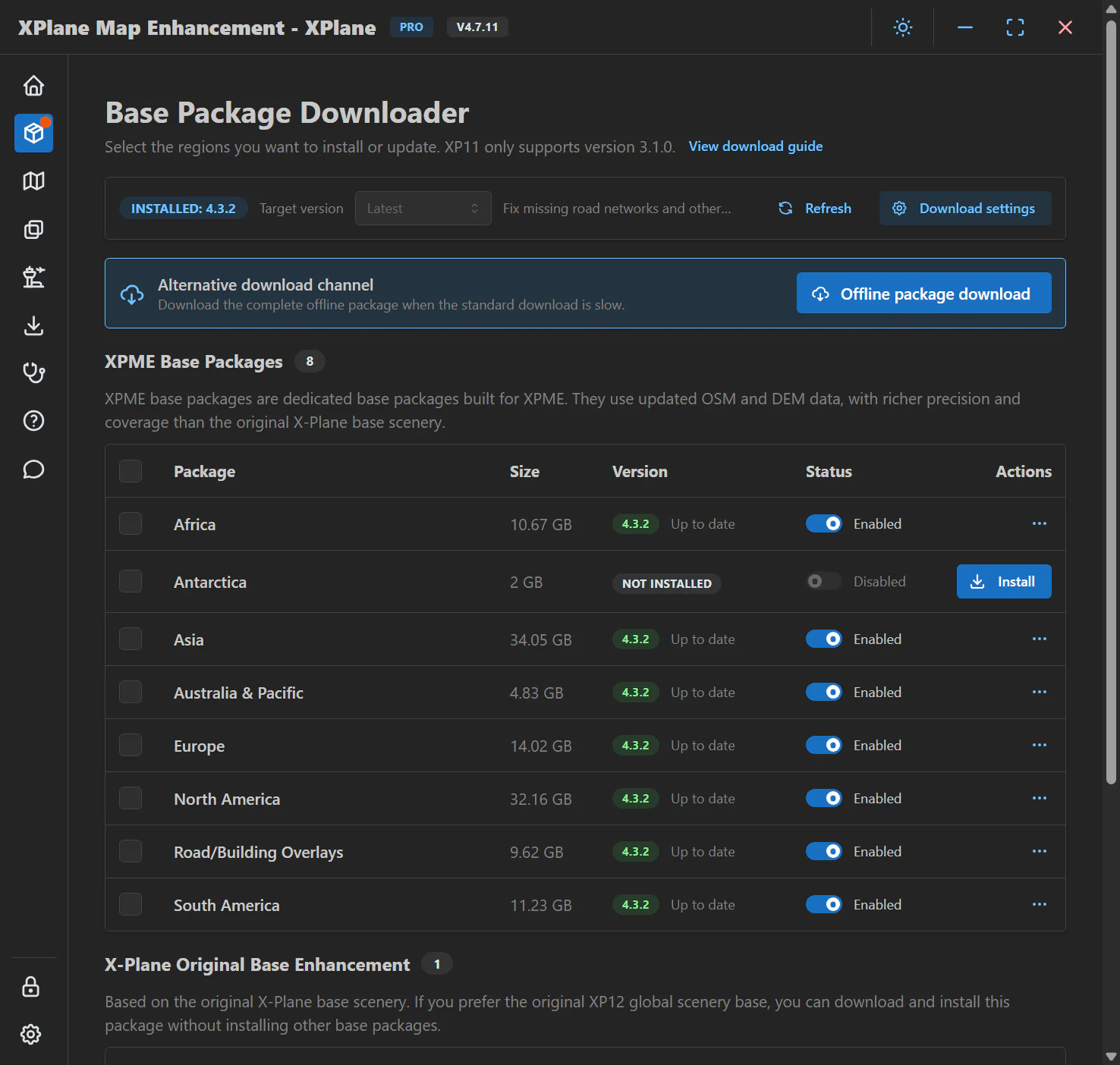
The downloader processes selected packages in a controlled order and can recover from compatible partial downloads. It also supports selecting an older target version when you need to downgrade. If the standard channel is slow, use the alternative complete-package link shown by the application.
Do not store base packages, image cache, or custom data inside the application installation directory. Installers replace that directory during a clean update; version 4.7.10 or later validates these paths to help prevent accidental data loss.
X-Plane Original Base Enhancement applies satellite imagery to the original X-Plane 12 global scenery base. Choose it if you prefer the original X-Plane terrain instead of the dedicated XPME base packages.
It is mutually exclusive with the regional XPME base packages. Enabling it disables the other official base packages; disabling it restores the previous regional selection. The update indicator may include this package, so open its section when an update badge remains after the regional packages are current.
Turn on Enable Seasonal Effects on the home page, then choose automatic or fixed-season behavior. A Pro license is required. Startup Season is used only in Auto mode before the simulator date becomes available; it does not keep that season for the entire flight.
Set Season override to Auto (simulator date). Before starting the service, choose the Startup Season for your departure airport. The first airport tiles use that season; after a valid flight date becomes available, seasonal imagery follows the X-Plane date.
Auto mode uses astronomical seasons based on equinoxes and solstices, reversed in the Southern Hemisphere. Colors blend over the 10 days before and after each seasonal boundary. It does not simply switch the Northern Hemisphere to autumn on September 1, and colors around a boundary do not change abruptly in a single day.
The example below uses ArcGIS as the Primary Map, Google Maps (labeled Google Map in the application) as the Fallback Map, and Summer as the startup season. Use the season appropriate for your departure airport and flight date.
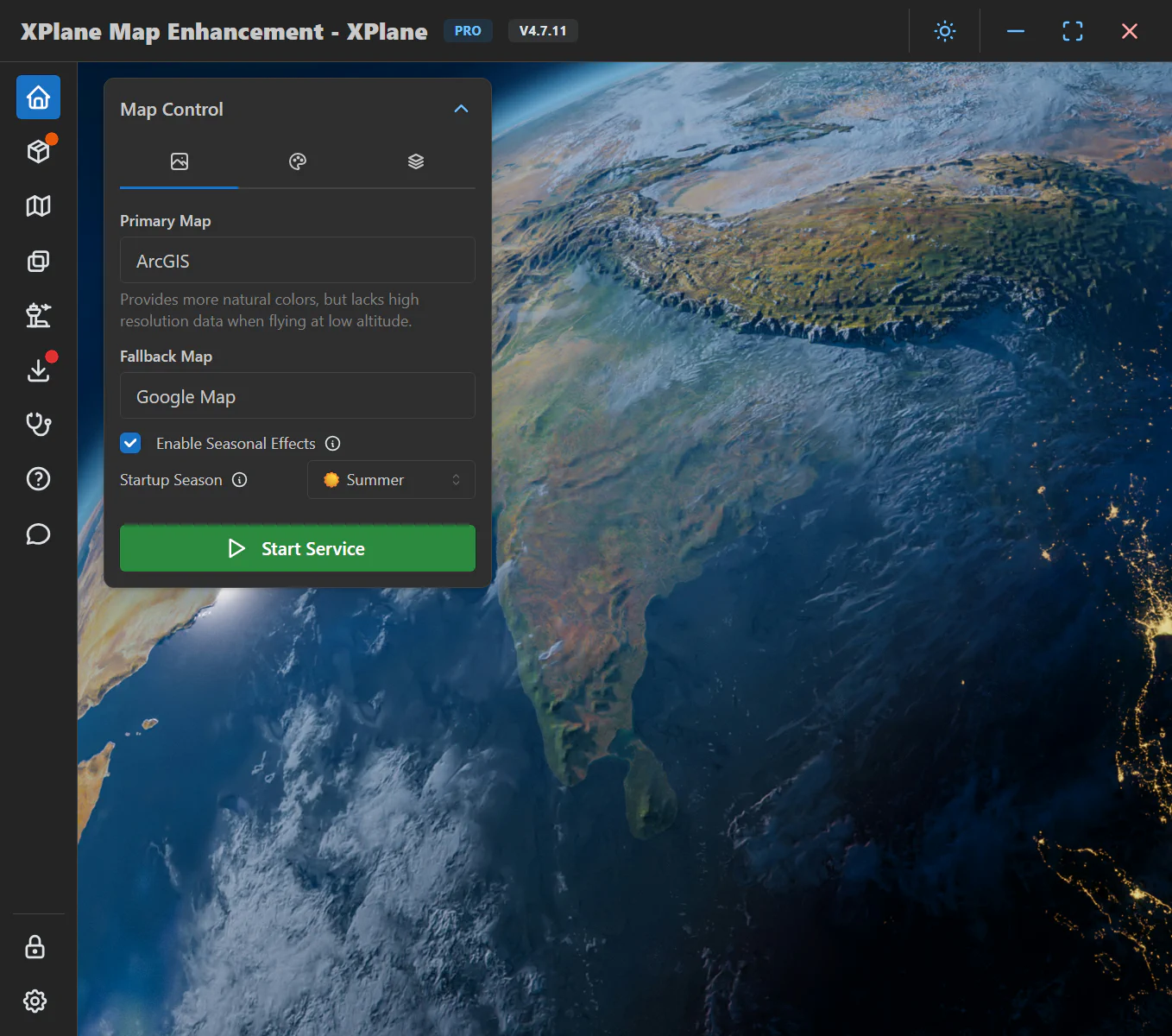
Choose Spring, Summer, Autumn, or Winter under Season override to keep that season regardless of the flight date, in either hemisphere. For example, select Summer to use summer imagery while retaining real-time simulator date and weather. This setting does not change the simulator date or weather. The choice is saved and can be changed while the service is running. Select Auto (simulator date) again to restore automatic changes.
If Season override is not present, your version does not support a fixed season; Startup Season is not a substitute for it.
New requests use the new season setting, but already loaded scenery is not immediately redrawn. If the old season remains or old and new colors mix, exit X-Plane, stop the XPME service, clear the application’s image cache, then restart the service and load the flight again. Imagery must be downloaded again, so the first load will be slower.
Base packages and X-Plane must be on NTFS volumes for WinFSP mounting. Keep only the current WinFSP version installed.
Install Fuse-T and the required Homebrew dependencies before downloading packages. On Apple Silicon, Homebrew should normally be installed under /opt/homebrew. If the downloader reports a missing libsqlite3.dylib or another aria2 dependency, reinstall sqlite, libssh2, gettext, and aria2 using the ARM Homebrew installation.
Version 4.7.10 or later lets you customize FUSE mount options in Advanced Settings. Older libfuse releases do not support every option; for example, max_threads requires libfuse 3.12 or newer. Remove unsupported options for the installed libfuse version or upgrade to a supported distribution rather than replacing system libraries manually.